

8.26.25 – Contract Implementation Update #35: Reporting Sick Now Available in ECS
Tuesday, August 26, 2025
Contract Implementation Update #35
Reporting Sick Now Available in ECS
CBA 9.B.1
As of the evening of August 25, 2025, the Electronic Communication System (ECS) now includes the option for Flight Attendants to report sick (CBA 9.B.1). This change rolled out earlier than expected — the original target date was October 2025.
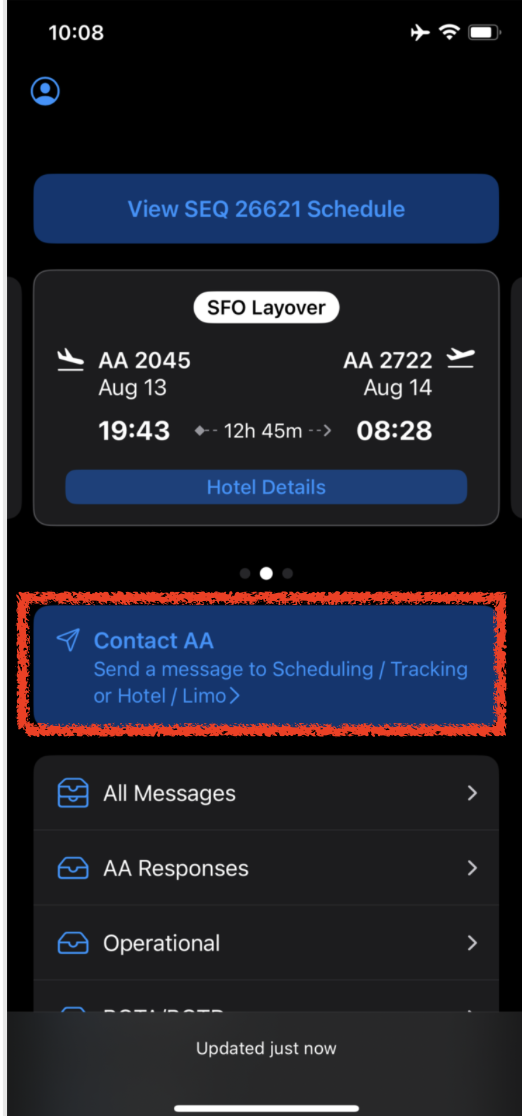
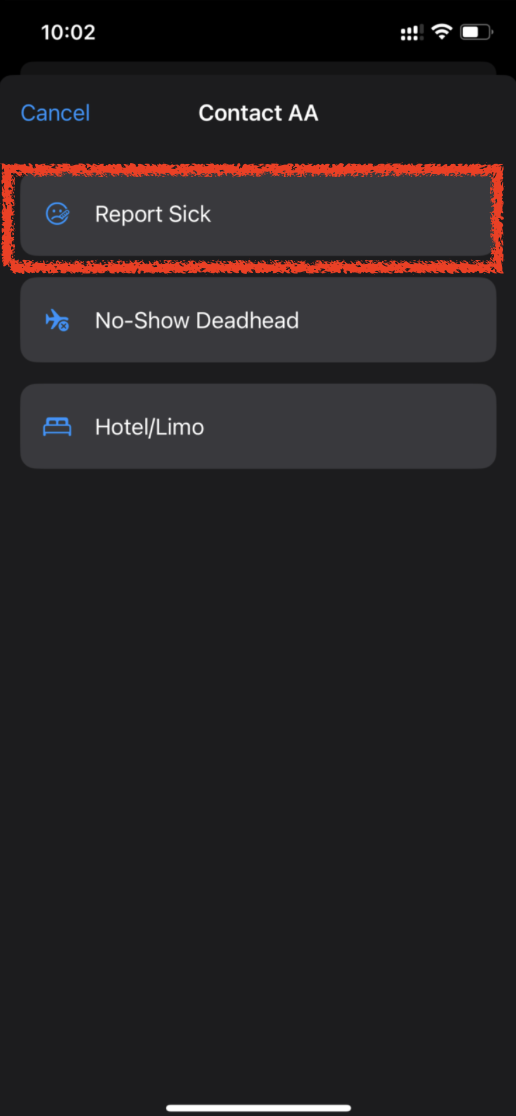
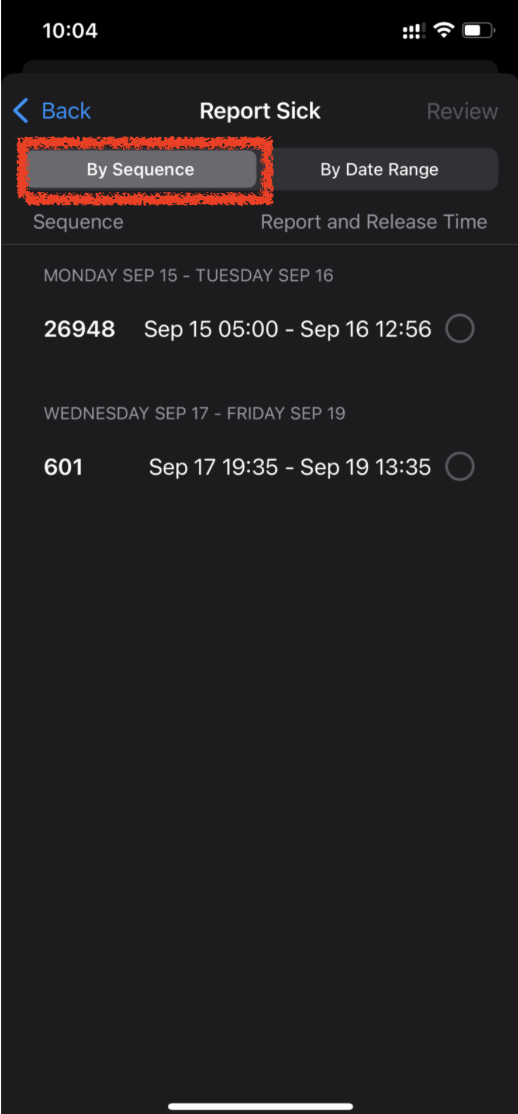
This enhancement is available in ECS under Contact AA > Report Sick. Flight Attendants have the option to report sick by sequence or by using a date range.
Flight Attendants may now use this option to report sick for a sequence, RAP, Standby, or Reserve days unless the sequence departs within three (3) hours, four (4) hours at a co-terminal base. Additionally, this option cannot be used to report sick mid-sequence. In these instances, a Flight Attendant will call Crew Scheduling to report sick.
Step 1: Select Contact AA:
Step 2: Select Report Sick:
Step 3: Choose to Report Sick either By Sequence or By Date Range:
Reporting Sick by Sequence
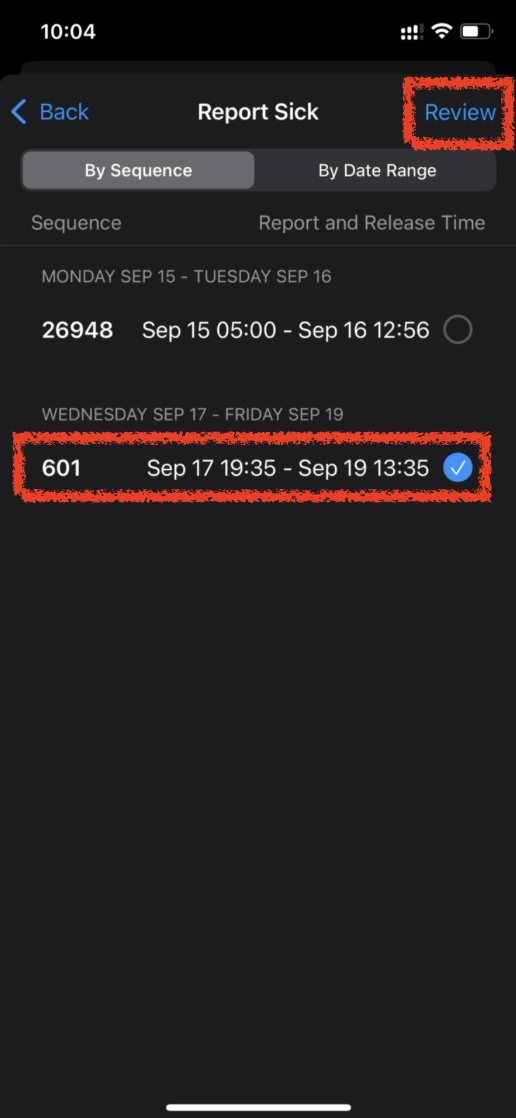
Lineholders and Reserves with a sequence may report sick by sequence. This option allows Flight Attendants to choose specific sequence(s) on their schedule for which to report sick. The report and release times for each sequence will display.
First, select the sequence(s) you would like to report sick and then tap Review:
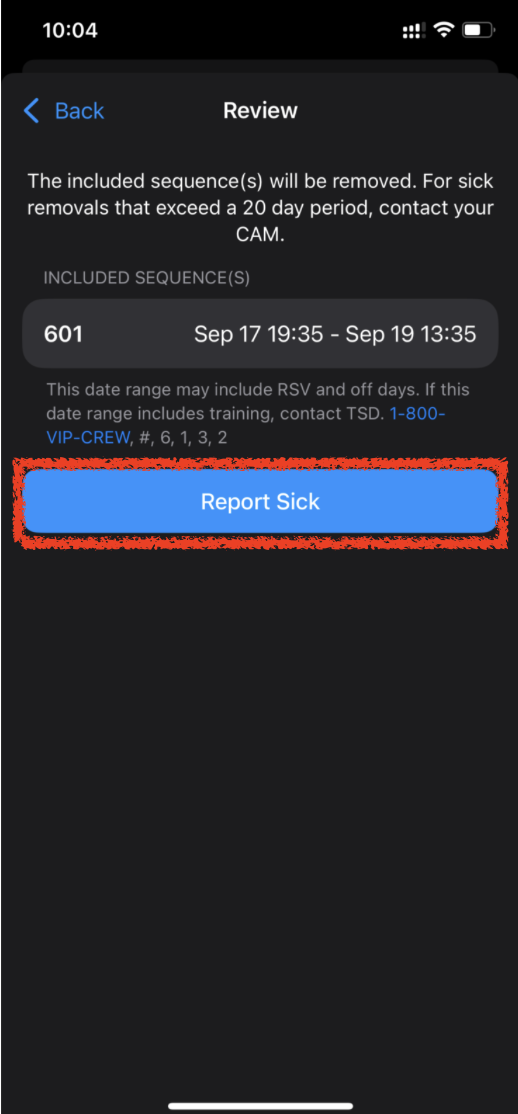
ECS will display your selected sequence(s) with report and release times. Confirm that the correct sequences have been selected and tap Report Sick.
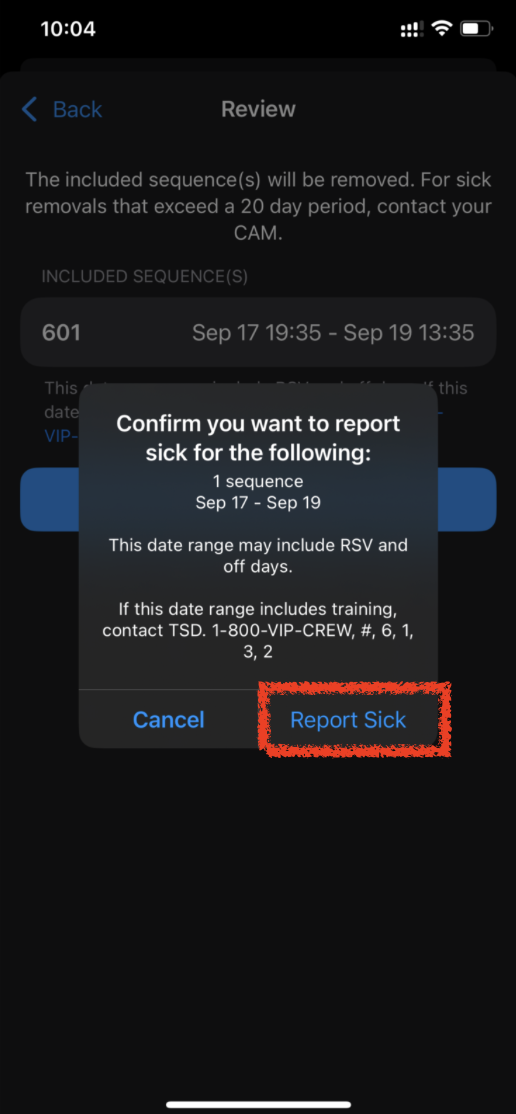
ECS will display the report time of your first sequence and release time of your last sequence selected. This will be the length of your sick absence based on your request. Confirm this is accurate and tap Report Sick:
Report Sick by Date Range
Lineholders and Reserves have the option to report sick by date range to include a range of sequences and/or Reserve days.
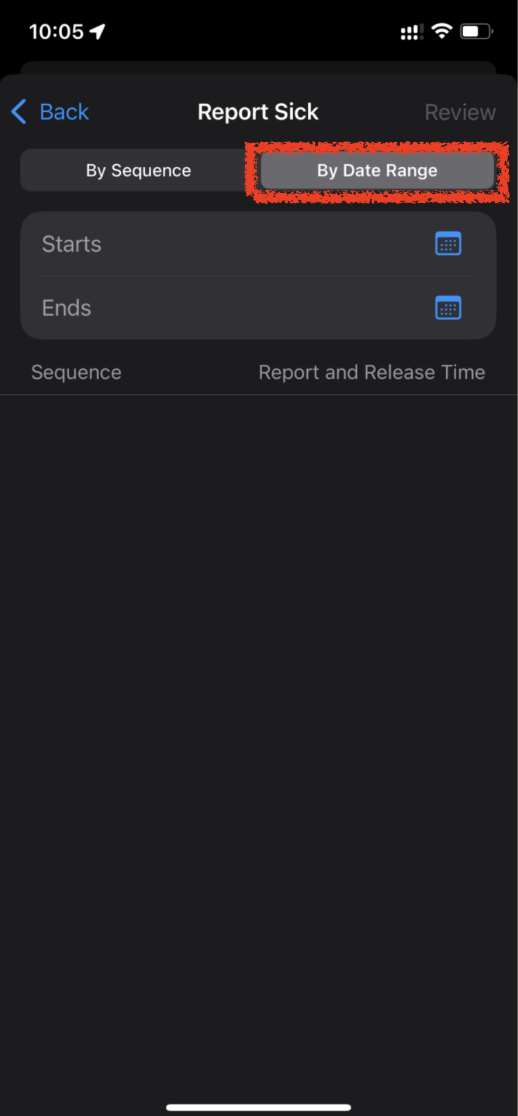
To report sick by date range, select the By Date Range tab (shown above).
Enter the start and end date of your desired date range:
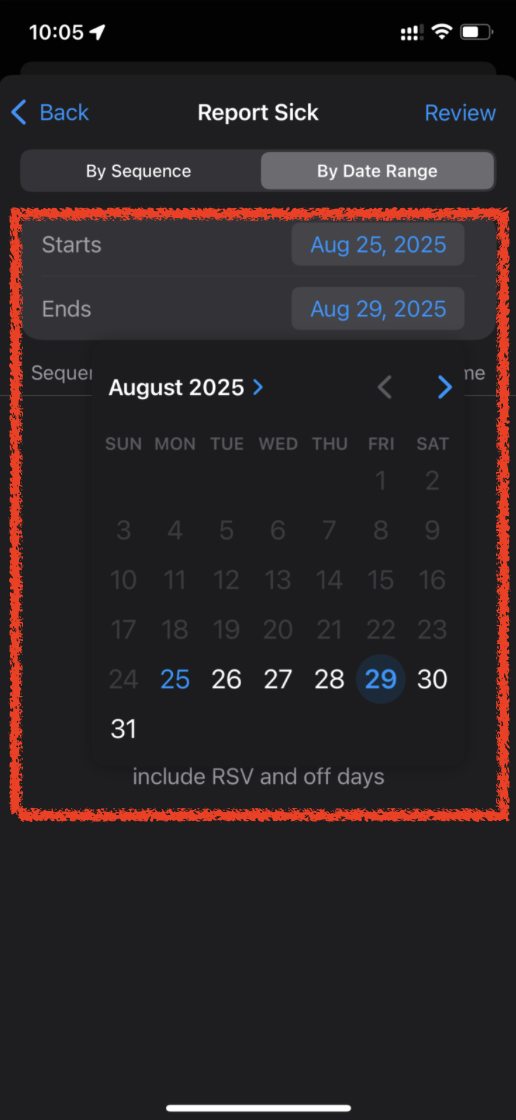
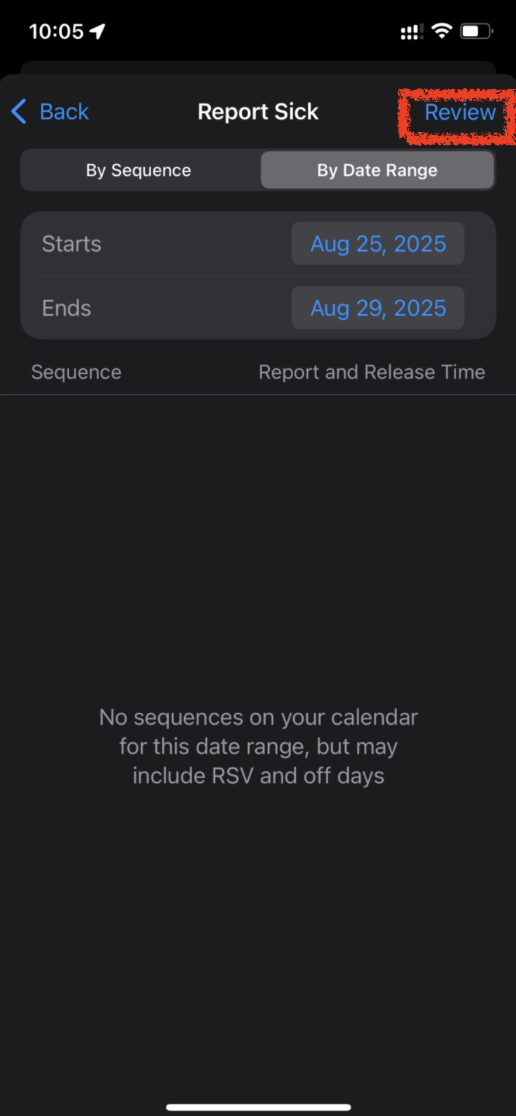
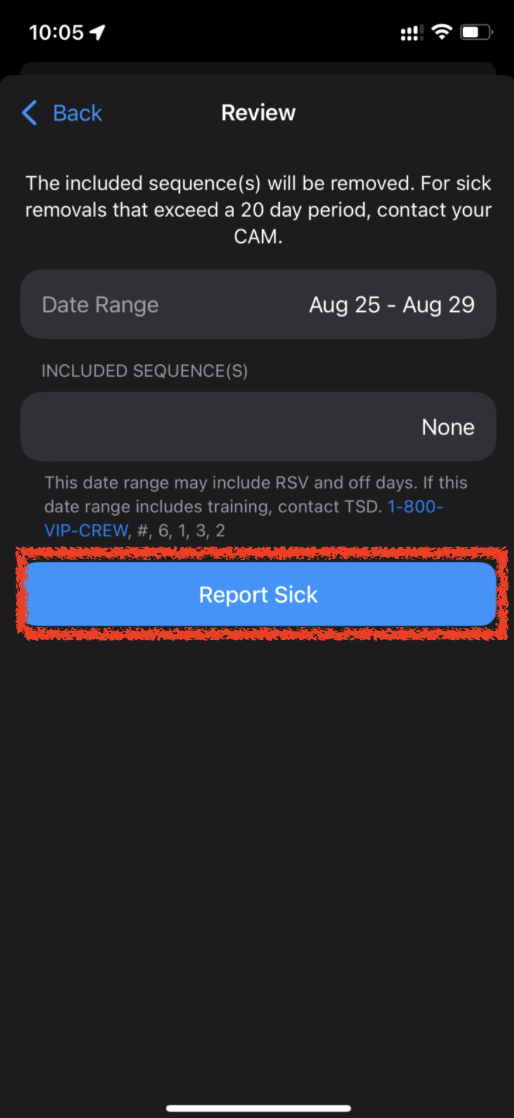
If this date range encompasses any sequences, they will display here. If you are on Reserve, Reserve days will not show in ECS. Tap Review to move to the next screen and then tap Report Sick after confirming you have entered the correct date range:
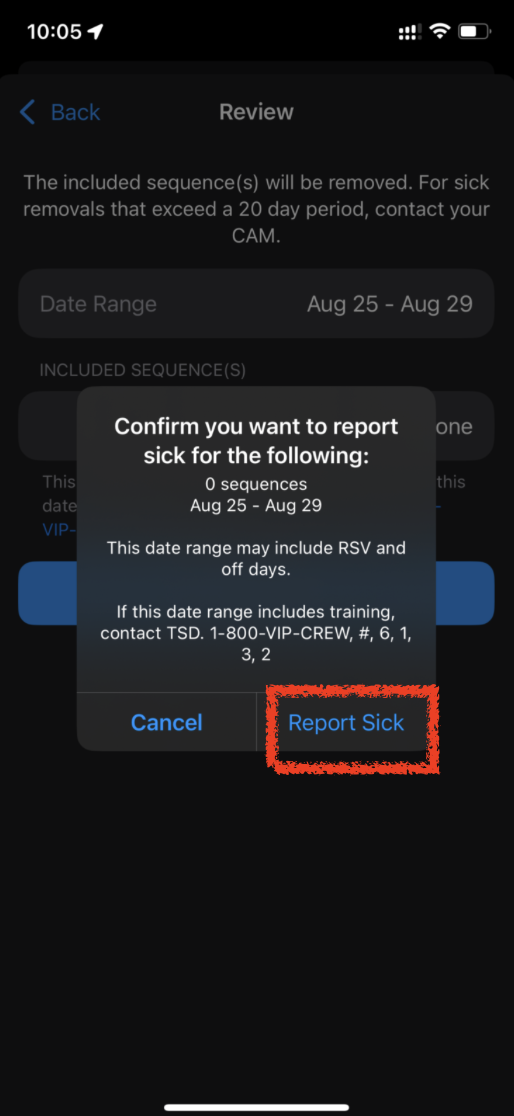
A confirmation will appear. Confirm you have entered the correct dates and tap Report Sick:
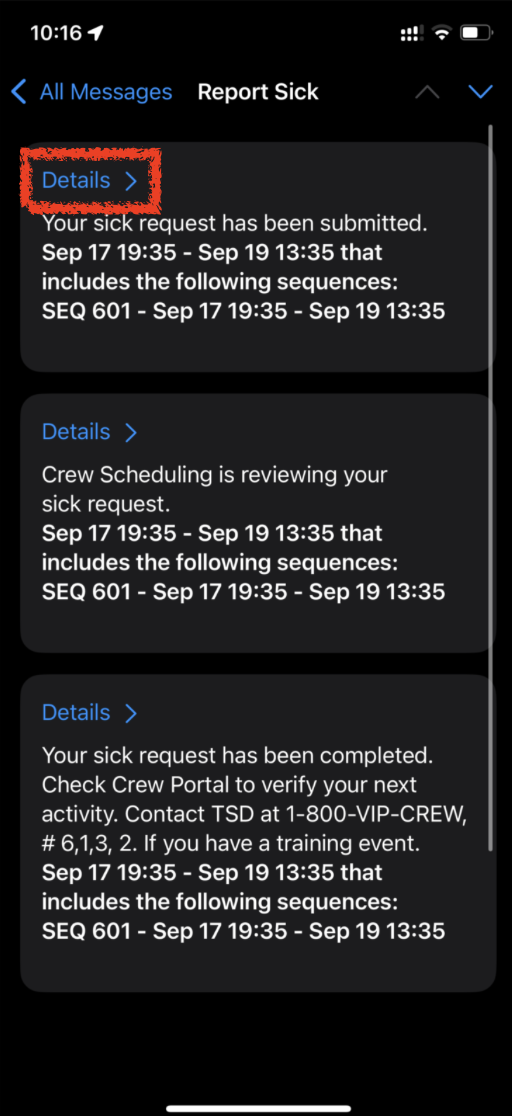
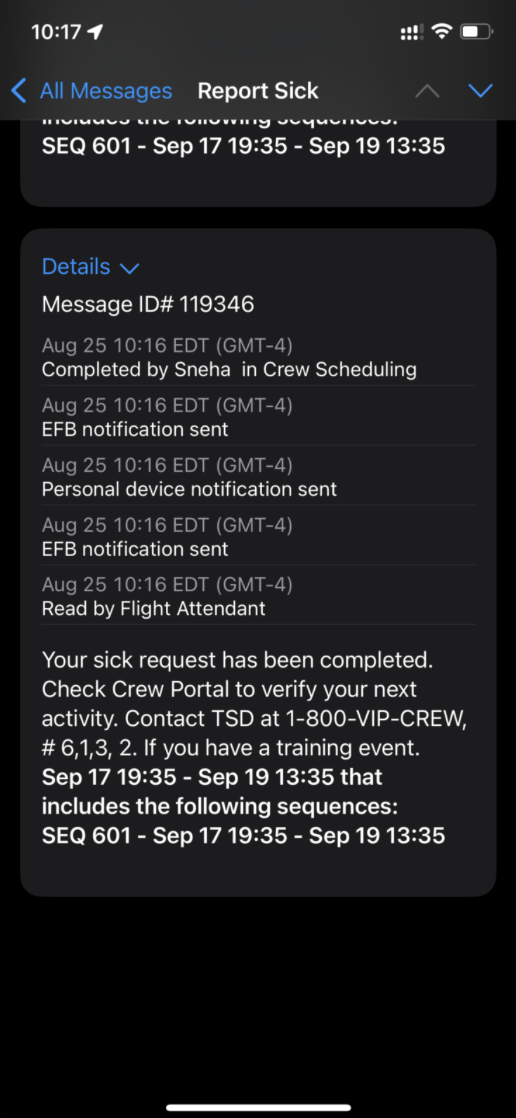
Details History
Your sick request will receive responses to the All Messages and the AA Responses tabs in ECS. To view details, tap on the message and tap Details to view time stamps of your submission(s) and as Crew Scheduling processes.
Should you encounter any issues with ECS, submit your issues and feedback in ECS under Profile > Send ECS Feedback. These forms go directly to the ECS team and responses will come to your AA email.
In Unity,
Kelly J. Hagan
LGA
Hunter Meredith
PHL
Wendy Oswald
LAX
Mike Sosa
DFW

APFA Headquarters
1004 West Euless Boulevard
Euless, Texas 76040
M-F: 9:00AM - 5:00PM (CT)
Phone: (817) 540-0108
Contract & Scheduling Desk
M-Th: 9:00AM - 5:00PM (CT)
Phone: (817) 540-0108
Live Chat Messaging
Fridays: 9:00AM - 5:00PM (CT)
Currently, no scheduled events...
APFA Headquarters
1004 West Euless Boulevard
Euless, Texas 76040
M-F: 9:00AM - 5:00PM (CT)
Phone: (817) 540-0108
Contract & Scheduling Desk
M-Th: 9:00AM - 5:00PM (CT)
Phone: (817) 540-0108
Live Chat Messaging
Fridays: 9:00AM - 5:00PM (CT)
Currently, no scheduled events...
APFA Headquarters
1004 West Euless Boulevard
Euless, Texas 76040
M-F: 9:00AM - 5:00PM (CT)
Phone: (817) 540-0108
Contract & Scheduling Desk
M-Th: 9:00AM - 5:00PM (CT)
Phone: (817) 540-0108
Live Chat Messaging
Fridays: 9:00AM - 5:00PM (CT)
Currently, no scheduled events...